Learning Web Development, Day 1 — Build Your First Website
I really like how just going through the advertisements for upgrades means you get a course certificate of completion.
So apparently I've finished my entire Programming Fundamentals course. Woo.
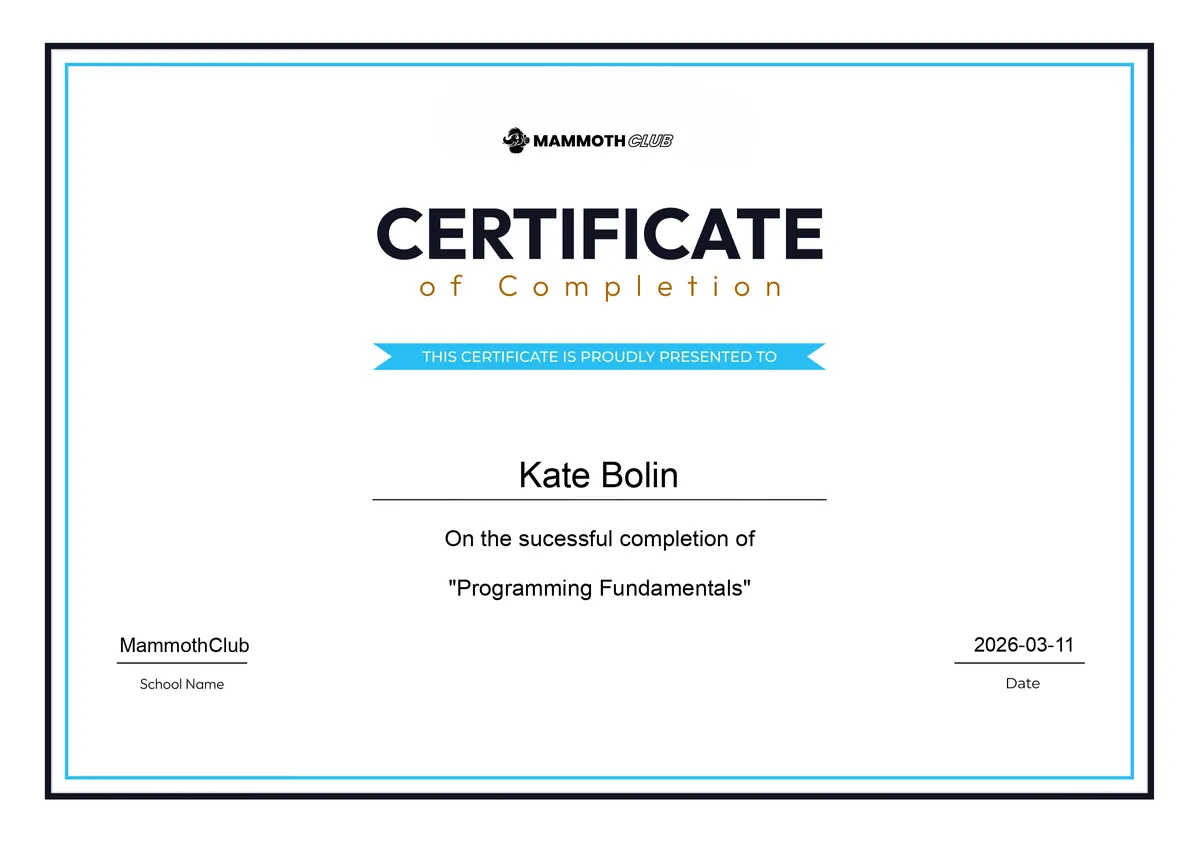
I know I should keep going with the various Python courses I have, but, right now, I'm exhausted, my brain is fizzing in all sorts of different directions, and I just need a break.
So, instead, to justify that Programming Fundamentals certificate and to give me a chance to nitpick the hell out of everything, I am doing Web Development Fundamentals with HTML, CSS, and Bootstrap — Complete Guide.
Am I gonna end up angry? Probably. I mean, I learned HTML back in 1995. I have opinions.
But, at the same time, maybe I'll pick up a few things. Or remember things I've forgotten. Hell, I barely build websites now. Maybe I'll get fancy with it.
01 — Build Your First Website with HTML in 1 Hour
An hour, you say? Good heavens! Welp, start the clock!
In this hour, we will cover:
- How To Use A Code Editor
- Set Up A Website
- Save The Website
- Build A Header
- Add Site Sections
- Add Images To A Website
- Build A Navigation Bar
00 — How To Use A Code Editor
Again, the list of videos is out of order again. I had this giant rant about how they just started with using JSitor without actually telling you how to get there, but that was because 00 was third in the list, so I jumped into "Set Up A Website" without realising.
And this is mostly "Woo, JSitor is good for you", but they did include one thing that pleased me.
They said you could use Notepad.
Yessssssss.
Yessssss. Use the plainest of the plain text software you have. Don't download anything new. Don't do it. NOTEPAD MY BELOVED.
(Although I am not going to lie. I'm not using Notepad. I'm using Sublime Text. I like it more than Visual Studio, and you don't have to worry about AI infecting it.)
When I was first building websites, I didn't even use Notepad. I didn't have a computer of my own, so I was using these random UNIX terminals they had in the computer lab on campus. And since the only 24-hour lab I had access to was ancient black-and-white UNIX terminals, I got very adept at logging into my account, telnetting into my web account, and then editing the HTML files live on the server using Pico.
Oh yeah, buddy, CODE DIRECTLY LIVE ON THE SERVER. IT WILL BE FINE. NO PROBLEMS THERE.
And, actually, most of the time? It was fine. I mean, hell, it was the late 90s, and just 5MB of space with a couple of HTML files and a few images. The most that happened was that I'd forget to close a tag and everything'd be in, like, an <h2> or similar.
01 — Set Up A Website
Because it's in an online code editor, they're not starting with the obvious <html> or <!DOCTYPE>.
No, they start with this.
<h1>Hello</h2>
I. What. What even is that.
But, thankfully, they then make sense and start with showing you how to go through the steps.
<!DOCTYPE html>
<html lang="en">
	<head>
	<meta charset="UTF-8">
	<title> </title>
	</head>
</html>
This is good. This is explaining things nicely. They are explaining that some tags need opening and closing tags and some tags don't.
And they're reminding me to actually put in the lang and charset in my code. I keep forgetting that, but it keeps on popping up and annoying me whenever I forget and copy/paste smart punctuation and then it all goes wrong.
Also, I've honestly never used name="viewport". It just never came up when I was building pages. But I haven't really built a page in forever, and now...yeah, I really should be using viewport.
I'll probably end up spending most of this course going "shoot, I better put that in" into my site.
And the first website they make? It's not bad.
<!DOCTYPE html>
<html lang="en">
	<head>
		<meta charset="UTF-8">
		<title>My First Website</title>
		<meta name="viewport" content="width=device-width, initial-scale=1">
	</head>
	<body>
		<h1>Hello</h1>
	</body>
</html>
That is an initial website I can get behind. And I've learned something as well. Great.
02 — Save The Website
This was mostly about saving your files from JSitor, but it did point out that when you download the file, it'll save as an HTML file on your computer and then open in your browser.
It also included "View Page Source", which was how I learned HTML, so I hope other people realise they can do that.
For reals. View Source. You can do it.
03 — Build A Header
This focuses on using <h#> tags. I love this. I love that they aren't going "Build this <div> and call it header", they're starting with actual headers, and explaining that it's giving structure for the browser.
Just including <h1> is more important than <h2> and that you should only have one <h1> on a page? I mean, god, how many times have I ended up repeating "This is basic Search Engine Optimisation will you do this properly" and they're just including it right in the beginning. Nice.
And then they bring in <header>! They're making it all semantic and organised. I know I need to get better at using these, but they weren't around back in the ancient days, so it's hard to remember.
04 — Add Site Sections
They're breaking the site into sections, which is good, but they're starting with <div>, which is kinda painful. I mean, what's wrong with <main>?
Then again, I'm guessing they're going to be breaking up the page into product pods, since this is a landing page for a series of courses. I guess <div> can work, but I'm sure there are better ways to do this.
<div>
<h3>Coding Fundamentals</h3>
<h4>Level 1</h4>
<p>Here is where I can put in content about the Level 1.</p>
</div>
So, yeah, I guess it'll work. But they're then not breaking each product into a separate <div> so I'm not sure what they're doing here...
I also like that they point you to Lorem Ipsum, but I occasionally like just trawling Project Gutenberg and picking a piece of fiction instead. I mean, you've got all of Edgar Allen Poe right there.
They're also including the fact that if you have specific bits of text that have specific weight, you should use the same tag across the site. That your product title will be an <h3> across the page and so forth, which I also appreciate, since I also have to nag people about this.
05 — Add Images To A Website
Oh, this is going to be a bit of a mess, because how many times have I seen people linking to images that don't exist on the server?
Remember when you would be using like Dreamweaver or similar and it'd try to do a full file path for your image and it'd be like C:\\My%20Images\Web%20Design\My%20Website%20Version%201\hello.gif?
Oh no, they're telling people to hotlink to images that you find on the web.
Do you also remember when people would set up hotlinking scripts on their servers so that any image you were hotlinking to would go instead to very graphic pornography or a image that said "DON'T STEAL PLZ"?
Honestly, I'm surprised that Pixabay is allowing hotlinking. I've got to try it.

Let's see what happens with the kitten in a tree picture.
I do like that they're focusing on loading time and making sure they're royalty-free.
But. Oh. Oh no. Oh no, honey, sweetheart, baby.
YOU FORGOT ABOUT THE ALT.
HOW CAN YOU FORGET ABOUT THE ALT TEXT?
HOW DO YOU TEACH PEOPLE TO INCLUDE AN IMAGE AND NOT INCLUDE THE ALT TEXT?
That's it, course is ruined, no alt text, no love.
06 — Build A Navigation Bar
I don't know how they're going to recover from the alt text disaster.
And adding a new <div> instead of <nav> is not helping.
I do like that they're doing anchor links to ids in the page rather than introducing <a name="top"></a>, just because that's too much code for something so ridiculous.
And trying to explain file paths is going to be tricky no matter what when you're using a site-based code editor.
I don't know why on earth they're using Camel Case for their ids though. Why are you making your life more difficult by having codingFundamentals and webDevelopment?
Also, none of these links in the navigation bar are actually wrapped in anything.
<div>

	<a href="#top">Home</a>
	<a href="#codingFundamentals">Coding Fundamentals</a>
	<a href="#webDevelopment">Web Development</a>
	<a href="#appDevelopment">App Development</a>
	<a href="#pythonProgramming">Python Programming</a>
	<a href="#machineLearning">Machine Learning</a>
	<a href="#interviewPrep">Interview Prep</a>

</div>
God, just put it in a list. Come on. Just an unordered list. Just one little list. You can't keep going on about how HTML is for the structure of the site and then have it so incredibly unstructured. They're just lying there! They have no bones to support them!
Day 1 — Results
- Pay attention to the numbering instead of the list order, damnit.
- Notepad, my beloved. View Source, my other beloved.
- Include
lang="en"in your<html>. - Include
<meta charset>in your<head>.charset="UTF-8"is a good default. - Include
<meta name="viewport">in your<head>. Put incontent="width=device-width, initial-scale=1"to make it fit the device properly. - Remember to use
<header>. - Apparently hotlinking is acceptable now.
- DO NOT FORGET YOUR ALT TEXT, YOU MONSTERS.
- Websites need bones. BONES.
We are currently one hour and 40 minutes after the start, but, to be fair to them, I did pause regularly. I mean, y'all really did need flashbacks to Dreamweaver, right?
And I didn't get as annoyed as I feared I would, but, man, leaving off actual structural elements for HTML and alt text really knocks my mood down massively.
They were doing so well. Oh my god, I was like "I do need to include these things! This is good to know!" and then, nope, downhill from there.
God only knows what the CSS will be like tomorrow.
Today's Sticker
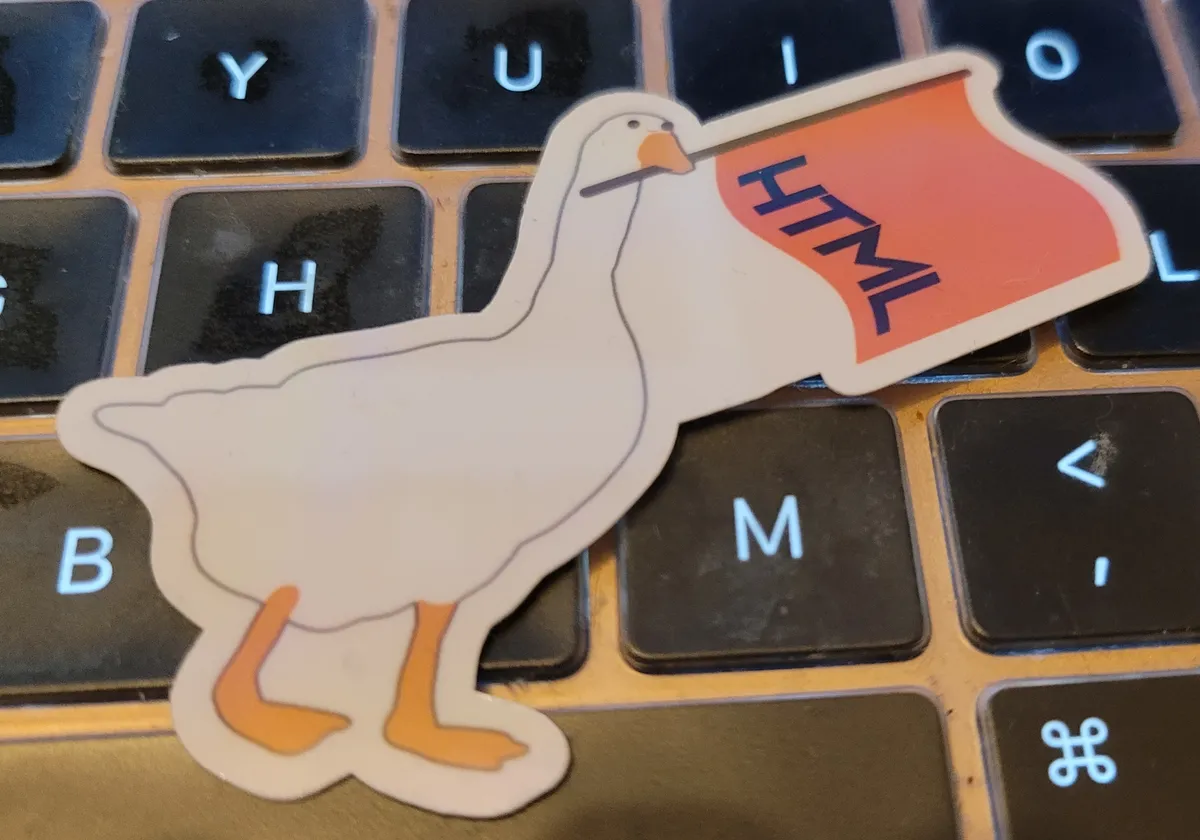
A goose carrying an HTML flag that I got at WDC25 but I have no idea who left it on the table for me to take. Whoever, you are, I love you. I love this goose.